Symmetry Explorer
An interactive viewer that finds every exact symmetry of a polyhedron, lets you animate each one, and shows whether the solid's mass distribution is mechanically symmetric. It also has a red-cyan stereo mode.
Features
40 polyhedra and your own
Platonic, Archimedean and Catalan solids, irregular controls and tuned bipyramids, plus any point set from a CSV or OBJ file (up to 400 points).
The exact symmetry group
Every rotation, reflection, inversion and rotoreflection, each verified to map the solid exactly onto itself, with the closure of the group checked.
See what a symmetry does
Play any element smoothly or one exact step at a time, follow a vertex and an edge, and read when the solid is back at its start.
Four inertia tensors
Eigenvalues for point masses at the vertices, a wireframe, a shell and a solid; iso=True marks the mechanically symmetric ones.
Red–cyan stereo
An anaglyph with adjustable depth and ink levels for your glasses, remembered between sessions.
Mouse, gamepad, command line
Drag and scroll, or use any gamepad with nothing to configure; open a point file straight from the command line.
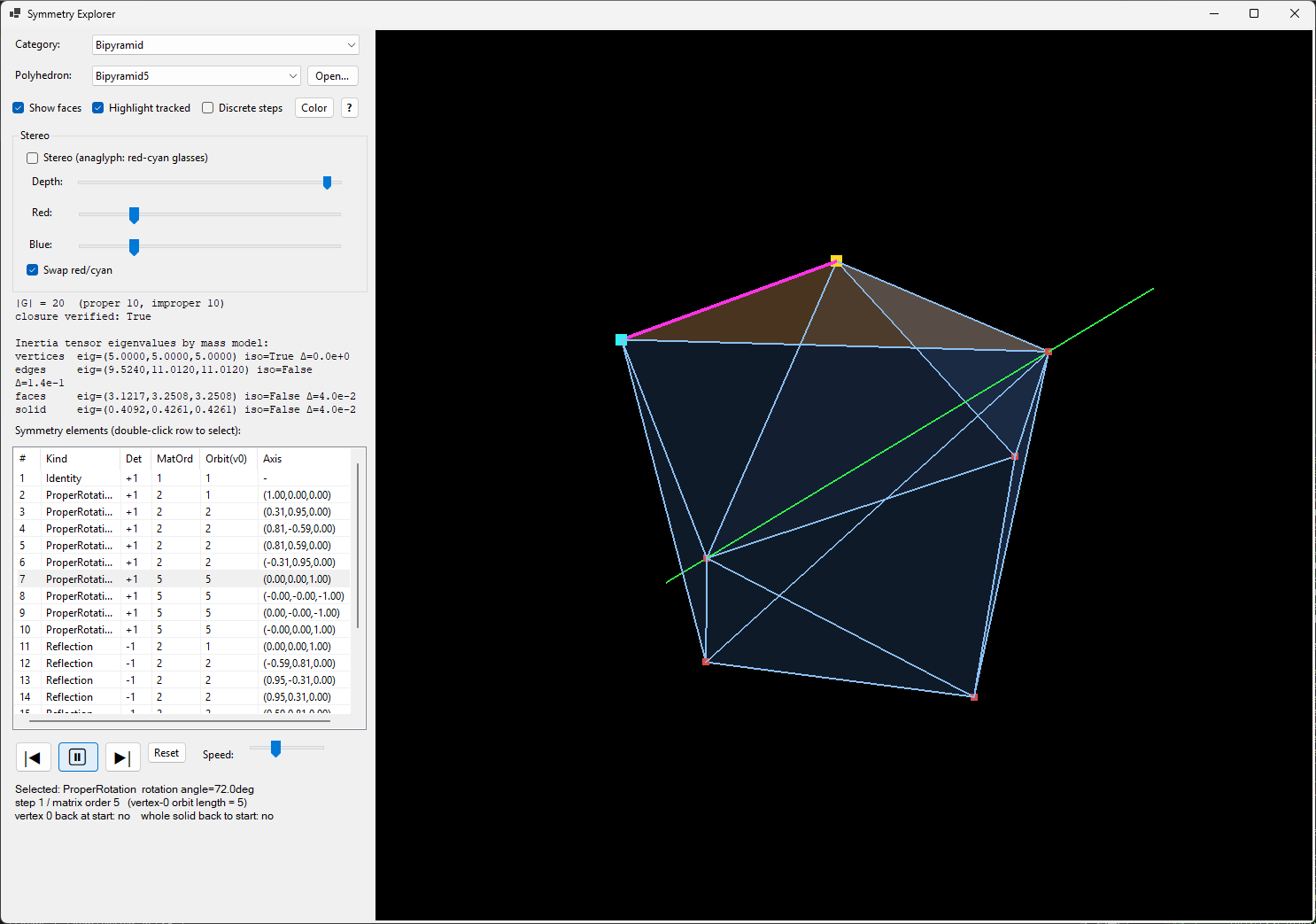
What it is
Pick one of 40 polyhedra and the program computes its full symmetry group: every rotation, reflection, inversion and rotoreflection that maps the solid exactly onto itself. Each symmetry can be selected and played back as a smooth animation, so you can see what it does to the solid and how often it takes to return to the start.
Alongside the geometry it reports the solid's inertia tensor under four mass models. If the tensor is isotropic (all three eigenvalues equal), the solid is "mechanically symmetric": it spins the same about every axis through its center of mass.
The window
| Area | What is there |
|---|---|
| Left column | Category and Polyhedron selectors, the display checkboxes, the Stereo group, the element list, the playback buttons, and the status and info texts. |
| Viewport | The 3D view of the solid. Drag and scroll to look around. |
| Status line | Describes the currently selected symmetry and the animation step (see Animating). |
Choosing a solid
- Choose a Category: Platonic, Archimedean, Catalan, Irregular or Bipyramid.
- Choose a Polyhedron from that category. The solid loads immediately, its symmetry group is computed and verified, and the element list and info panel refresh.
Loading a new solid clears the selected symmetry and resets the animation. The full list is in the catalog.
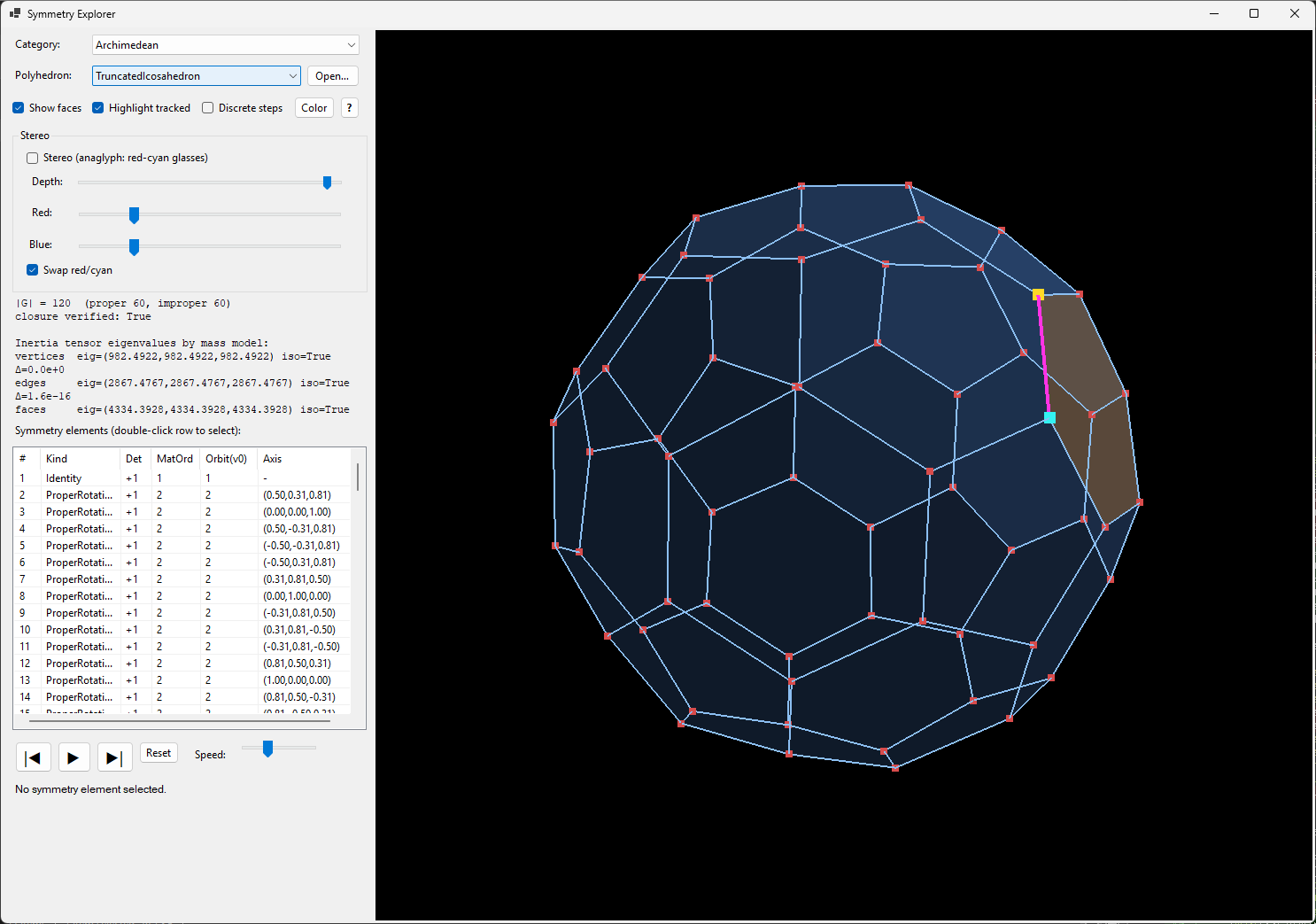
The Color button picks the viewport background color. This matters for stereo mode, where it sets the paper color the ink contrasts against.
Opening a point set from a file
The Open… button next to the polyhedron list loads a point set saved as CSV (index,x,y,z or plain x,y,z; lines starting with # are ignored) or as a Wavefront OBJ (only the v lines are used). Symmetry Explorer builds the convex hull, merges coplanar triangles into faces, finds the symmetry group exactly as for the built-in solids, and lists the set under the category Opened point sets. Sets saved by Symmetry Mechanical open directly. Up to 400 points are accepted (120 if the points are not all on one sphere). The same file can be given on the command line: Symmetry.App.exe points.csv.
Viewing in 3D
- Rotate: hold the left mouse button and drag. Horizontal motion turns the solid around the vertical axis, vertical motion tilts it (limited to ±89° so it cannot flip over).
- Zoom: mouse wheel. The distance is clamped so you cannot go inside the solid or lose it.
- The solid is always scaled to fit the view, and keeps a fixed size while animating. An inversion therefore visibly shrinks through the center and out the other side.
Symmetry elements
The Symmetry elements list shows one row per symmetry of the loaded solid. Double-click a row to select it. The selected symmetry's axis is drawn through the center of the solid.
| Column | Meaning |
|---|---|
# | Row number in the list (sorted by kind, then matrix order). |
Kind | Identity (does nothing), ProperRotation (turn about an axis), Reflection (mirror through a plane), Inversion (point reflection through the center), RotoReflection (rotation combined with a reflection across the plane perpendicular to the axis). |
Det | Determinant of the matrix: +1 for proper (rotations), -1 for improper (anything that flips handedness). |
MatOrd | Matrix order: the smallest k such that applying the symmetry k times returns the whole solid to its starting orientation. |
Orbit(v0) | The actual number of distinct positions vertex 0 visits under repeated application. This can be smaller than the matrix order (a vertex lying on a rotation axis never moves, for example), so the two are shown separately. |
Axis | The rotation axis, or the mirror plane's normal for reflections, as a unit vector. Inversion has no axis (-). |
Animating a symmetry
Select an element, then use the playback buttons:
| Control | Action |
|---|---|
| ▶ / ⏸ | Play or pause the animation of the selected symmetry. |
| |◀ and ▶| | Step back or forward by exactly one application of the symmetry (one full "M" step). |
| Reset | Return to the untransformed solid (step 0). |
| Speed slider | 1 (slow) to 10 (fast). In continuous mode it sets how fast the motion runs. In discrete mode it sets how long each step is held. |
| Discrete steps | Unchecked: smooth continuous motion. Checked: the solid jumps straight from one exact state Mk to the next and holds each one, so every iteration is clearly visible. Toggling it snaps to the nearest exact state. |
How each kind moves
- Rotation: a smooth turn about its axis.
- Inversion: a uniform scaling from +1 to −1 through the center.
- Reflection / rotoreflection: the solid flips through the mirror plane (it passes through zero thickness along the plane's normal), so you can follow what a mirror does without any teleporting.
Reading the status text
The status area under the viewport shows the kind and angle of the selected symmetry, the current step / matrix order, the orbit length of vertex 0, and two flags:
- vertex 0 back at start is YES whenever the step count is a multiple of vertex 0's orbit length.
- whole solid back to start is YES only when the step count is a multiple of the matrix order.
Display options
| Option | Effect |
|---|---|
| Show faces | Draws translucent, flat-shaded faces on top of the wireframe. Off by default shows the wireframe only. |
| Highlight tracked | Marks one feature so you can follow the motion: vertex 0 (large gold dot), its partner on the tracked edge (cyan dot), the tracked edge (thick magenta), the tracked face (orange, when faces are shown), and all other vertices as small red dots. |
| Color | Background color. Line colors adapt continuously so they stay readable on both light and dark backgrounds. |
When Stereo is on, faces and highlight are disabled (greyed out) and the solid is drawn as plain wireframe, because translucent fills and a multi-color palette do not survive red-cyan filtering.
Group and inertia panel
For the loaded solid the panel reports:
- |G|, the order of the symmetry group, with the count of proper rotations and improper elements.
- closure verified, confirming the found set really is a group (composing any two elements stays in the set).
- Inertia tensor eigenvalues for four mass models: vertices (point masses at the vertices), edges (uniform wire), faces (uniform sheet) and solid (uniform volume). Each line also shows
iso=True/False.
All three must be equal. The moment of inertia about a direction n is nᵀ·I·n, and that is the same for every direction only when the tensor is a multiple of the identity. If just two eigenvalues match (like a spinning top or a stretched bipyramid) the solid is equal only about axes in one plane, plus the distinguished axis. That is axial symmetry, not full mechanical symmetry.
Stereo (3D glasses)
Stereo mode renders the solid as a red-cyan anaglyph for 3D viewing with red-cyan glasses. Tick Stereo (anaglyph: red-cyan glasses) and put the glasses on.
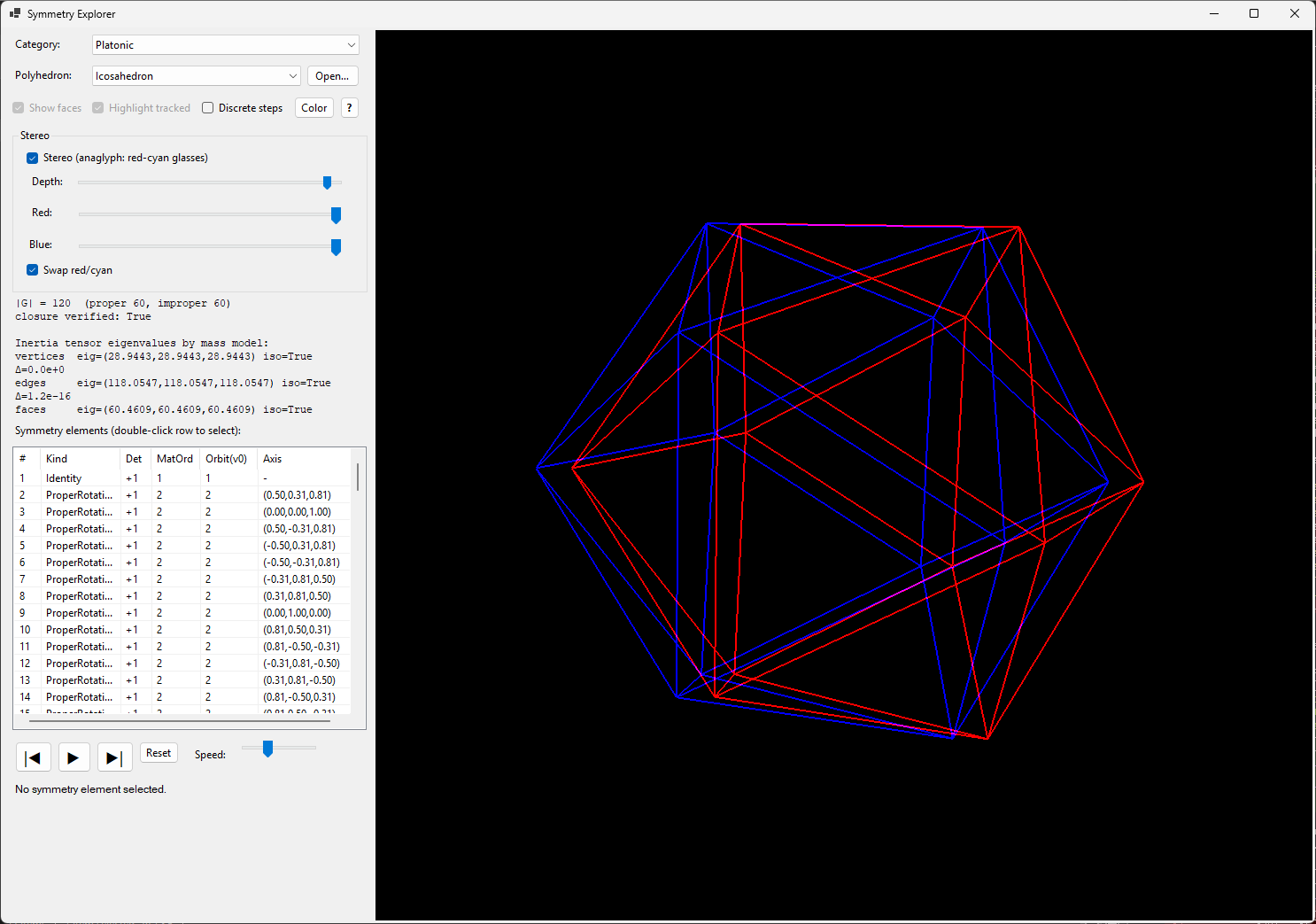
Controls
| Control | Purpose |
|---|---|
| Depth | Separation between the two eye views, 0 to 50. More separation gives stronger depth but eventually becomes hard to fuse. Start low and increase. |
| Red | Ink level for the red-filter eye, 0 to 100. |
| Blue | Ink level for the cyan-filter eye, 0 to 100. |
| Swap red/cyan | Exchanges which eye gets which view. On by default. If depth looks inside-out (near parts look far) toggle it. |
| Color (background) | The paper the ink is drawn on. Light backgrounds usually give easier fusion. |
Why the sliders need tuning
Stereo only works when each eye sees its own picture and nothing of the other eye's. Real glasses and screens are never perfect filters, so a bit of one image leaks into the wrong eye (ghosting) and the 3D effect falls apart. The Red and Blue sliders are how you fix that: you adjust them until the red lens shows only its own lines and the cyan lens shows only its own.
Plan on a short tuning pass the first time you use stereo, and again whenever you change the background color. A new background changes what "visible" means for each eye, so the old slider positions will no longer be right. Your setup is remembered between sessions, so this is a one-time job per background.
A practical routine: close one eye at a time. With only the red-filtered eye open you should see one clean set of lines. Do the same with the cyan-filtered eye. Move the matching slider until the other eye's image is gone while your own stays clearly visible, then open both eyes and adjust Depth.
How the two sliders work
Each eye's image is drawn into only one color channel: the red eye's lines change only the background's red channel, and the cyan eye's lines change only its blue channel. Through its own lens each eye therefore sees lines against the plain background, and through the other lens that image is invisible.
The slider value is the level written into that channel. Lines are visible when that level is different from the background's own level in the same channel, and disappear when it equals it.
- Dark background: high slider values (toward 100) give bright, strong lines.
- White background: low slider values (toward 0) give dark lines. At 100 the lines vanish, since white is already at the maximum.
- Mid-grey or colored backgrounds: both ends give visible lines, bright at one end and dark at the other. Try combinations.
Persistence
The stereo on/off state, Swap, Depth, Red, Blue and the background color are saved when you close the program and restored on the next start. They are stored in %APPDATA%\SymmetryExplorer\stereo.json. Delete that file to return to the defaults.
Gamepad
A gamepad (wired or Bluetooth) works as soon as it is connected; there is nothing to configure. It only responds while the Symmetry Explorer window is the active window. The four face buttons are called A, B, X and Y after their usual layout (A at the bottom, Y at the top); LB and RB are the shoulder buttons and LT and RT the triggers.
Outline colours: blue = view, red = lists, teal = animation.
| Control | Action |
|---|---|
| Right stick | Orbit the solid (the same sense as dragging with the mouse). |
| Left stick up / down | Zoom in / out. |
| Left stick left / right | Decrease / increase the stereo Depth slider. |
| D-pad up / down | Previous / next polyhedron in the list. |
| D-pad left / right | Previous / next category (the polyhedron list then starts at its first entry). |
| Y / A | Move to the previous / next symmetry element. It is selected straight away, so there is no double-click. |
| X | Play / pause the animation. |
| B | Reset the animation to its starting position. |
| LB / RB | Step the animation back / forward by one whole step. |
| LT / RT | Animation speed down / up. |
| Back (Select) | Stereo anaglyph on / off. |
| Start | Switch between discrete and continuous animation. |
Quick recipes
- Pick Platonic → Cube.
- Double-click a
ProperRotationrow with MatOrd 4. - Press ▶ and watch the 4-fold turn. The status flag reports when the cube is back at start.
- Select an element, tick Discrete steps.
- Press ▶ at speed 2–3, or use ▶| to step by hand.
- Tick Highlight tracked to follow vertex 0 and one edge.
- Load Platonic → Icosahedron: all four mass models show iso=True.
- Load Irregular → ElongatedBox: iso=False.
- Load Bipyramid → Bipyramid5: the vertex model is isotropic even though its group has a main axis.
- Choose a light background with Color and tick Stereo.
- Set Red and Blue to 0 (dark lines on white) and Depth around 15.
- Put the glasses on, raise Depth until depth feels natural, then tune Red and Blue.
- If near and far are swapped, toggle Swap red/cyan.
Solid catalog (40 solids)
| Category | Count | Solids |
|---|---|---|
| Platonic | 5 | Tetrahedron, Cube, Octahedron, Icosahedron, Dodecahedron |
| Archimedean | 13 | Cuboctahedron, Truncated Tetrahedron, Truncated Octahedron, Truncated Cube, Rhombicuboctahedron, Truncated Cuboctahedron, Icosidodecahedron, Truncated Icosahedron, Truncated Dodecahedron, Rhombicosidodecahedron, Truncated Icosidodecahedron, Snub Cube, Snub Dodecahedron |
| Catalan | 13 | Rhombic Dodecahedron, Triakis Tetrahedron, Tetrakis Hexahedron, Triakis Octahedron, Deltoidal Icositetrahedron, Disdyakis Dodecahedron, Rhombic Triacontahedron, Triakis Icosahedron, Pentakis Dodecahedron, Deltoidal Hexecontahedron, Disdyakis Triacontahedron, Pentagonal Icositetrahedron, Pentagonal Hexecontahedron |
| Irregular | 5 | Stretched Tetrahedron, Elongated Box, Cube with One Corner Cut, Octahedron with One Vertex Pulled, Icosahedron with One Vertex Cut. These are low-symmetry controls for comparison. |
| Bipyramid | 4 | Right n-gonal bipyramids for n = 3, 5, 7, 9, each tuned to a height that makes its vertex-mass inertia tensor isotropic. |
Mathematical background
- Exactly verified symmetry finding. Candidate symmetries are generated algebraically and kept only if they map the full vertex set onto itself exactly. The resulting set is also checked to be closed under composition.
- Isotropy is not a symmetry test. Many non-isometric objects share an isotropic inertia tensor, so it is used as a cross-check next to the exact group search, never as the criterion.
- Why the highest symmetry stops at order 5. Any finite group acting irreducibly on 3D space forces an isotropic inertia tensor (Schur's Lemma). The only such groups are the tetrahedral, octahedral and icosahedral families, so no proper rotation of order above 5 appears in the Platonic-based catalog. This is the 3D counterpart of the known planar result that a section has mechanical symmetry exactly when its rotational order is at least 3.
- The bipyramid family has a reducible group (one distinguished axis) and so is not bound by that ceiling. At height
h = r·√n / 2a bipyramid with n base vertices is point-mass isotropic for every n ≥ 3. For n = 4 it coincides with the regular octahedron.
The full write-up is in Mechanical_Symmetry_in_3D.pdf. The command-line harness in Symmetry.Console re-runs all verification checks (group closure, isotropy and animation consistency).
Troubleshooting
| Problem | Fix |
|---|---|
| Nothing animates when I press ▶ | Select a symmetry first by double-clicking a row. Identity does not visibly move. |
| The stereo image looks flat or gives double vision | Reduce Depth, view from farther away, and make sure the glasses have red over the left eye (or toggle Swap red/cyan). |
| The stereo lines disappear | The Red or Blue slider is at the background's own level for that channel (for example 100 on white). Move it away from that value. |
| Near and far appear swapped | Toggle Swap red/cyan. |
| Faces and Highlight are greyed out | They are unavailable while Stereo is on. Untick Stereo. |
| Viewport is black or blank | This is a graphics-driver/OpenGL context problem. The program needs OpenGL 3.2 with the compatibility profile. |
Copyright and licence
Symmetry Explorer © 2026 Joaquín Obregón Cobo. All rights reserved.
Symmetry Explorer is free to use, for any purpose, but it is not open source: it may not be redistributed or modified without permission, and it is provided as is, without warranty. The full terms are in LICENSE.txt, next to the program.
Third-party software
Symmetry Explorer uses OpenTK and its GLControl (MIT licence) and the GLFW library (zlib licence). Their copyright notices and licences are on the Licences page and in the Help\licenses folder.